
Convert Prepayments to Open AR Credit in Levridge Ag Sales
| Published: Jan 20, 2026 | Ag sales , Product Updates , Release Notes | read
 read
readGrowers often make prepayments to lock in favorable pricing or manage tax liabilities before the season begins. But what happens when the season ends and there’s still money left in those prepayments?
Levridge Ag Sales 2025 R3 solves this problem by introducing a new feature called Convert Prepayment to Open AR Credit.
Why Convert Prepayments?
Prepayments are typically applied to sales agreements or specific product categories. However, at the end of the season, growers may have unused balances. Instead of leaving those funds tied up, you can transfer the remaining amount—either fully or partially—into an open AR credit. This credit can then be applied to future purchases, giving customers flexibility and keeping your accounts accurate.
Key Benefits
- Transparency: Each transfer is tracked at the allocation level, ensuring clear audit trails.
- Flexibility: Move funds to the same account or a different customer account as needed.
- Efficiency: Automates what was previously a manual journal entry process, reducing errors and saving time.
Before You Begin
Make sure these prerequisites are in place in Ag Sales>Setup>Agriculture Parameters
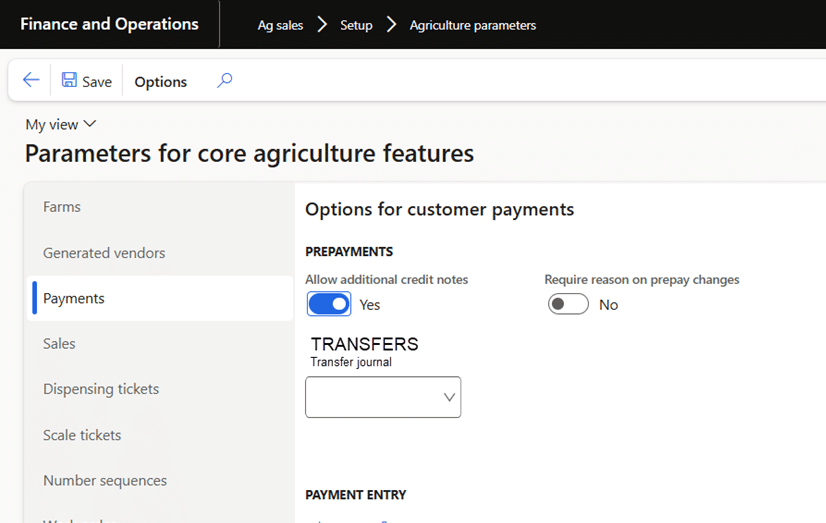
- A transfer journal is selected in Ag Sales Parameters.
- A number sequence for transfer vouchers is configured.
- Security privileges allow access to the Open Prepayments and Credits form.
If these settings aren’t configured, the system will prompt you with an error message.
Step-by-Step Process
- Open Prepayments and Credits Go to Ag Sales > Periodic Tasks > Open Prepayments and Credits. This form lists all prepayments and credits.
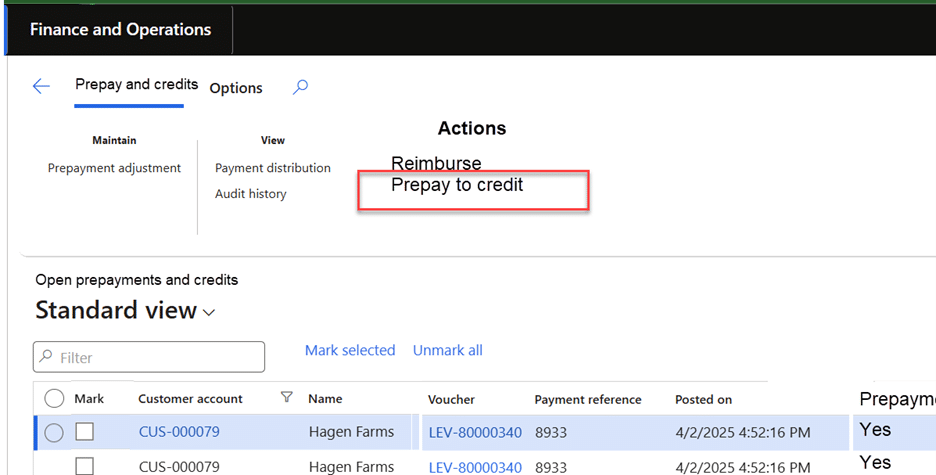
- Select Prepayment Records
Choose one or more prepayment records. These can belong to the same or different customer accounts, but they must share the same currency. - Click ‘Prepay to Credit’
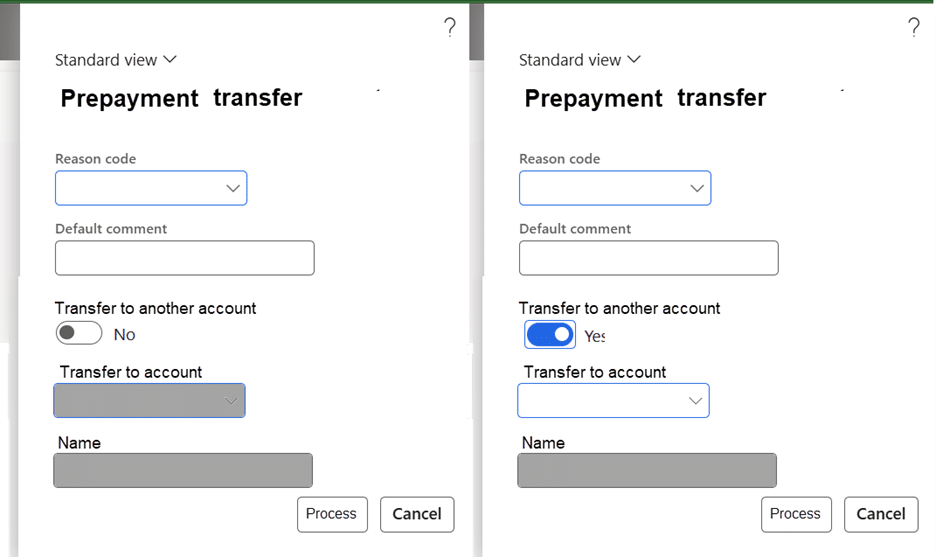
This option initiates the transfer process. Note: You cannot select AR credit records for this action. - Complete the Transfer Dialog
- Reason Code: If required by your setup, select or enter a reason for the transfer.
- Transfer to Another Account: Set to Yes if moving funds to a different customer account, then select the account.
- Add any comments for clarity.
- Process the Transfer
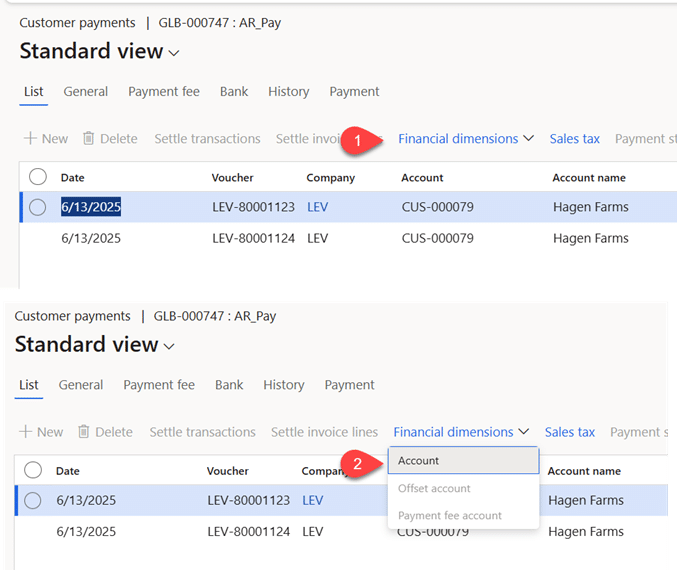
The system creates a customer payment journal with two vouchers:- First Voucher: Decreases the prepayment amount for each distribution line.
- Second Voucher: Converts the prepayment into an AR credit for the selected account.
Tracking and Reporting
After processing, you can view transfer details in several places:
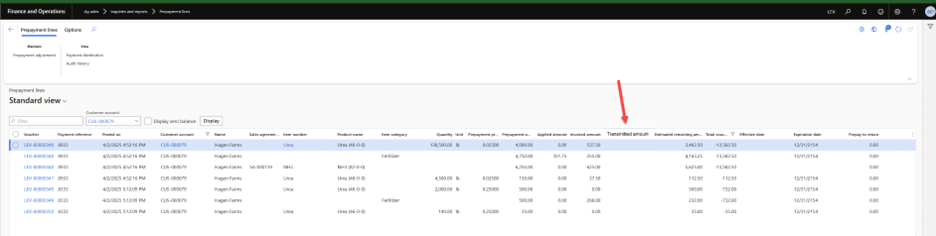
- Prepayment Lines Inquiry: Shows transmitted amounts and updated remaining balances.
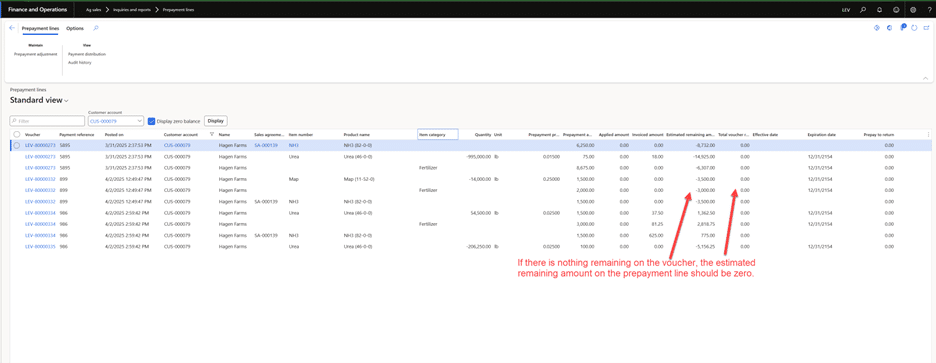
If a prepayment has zero remaining on the voucher, the ‘Estimated remaining amount’ on the prepayment line should be zero
Audit History
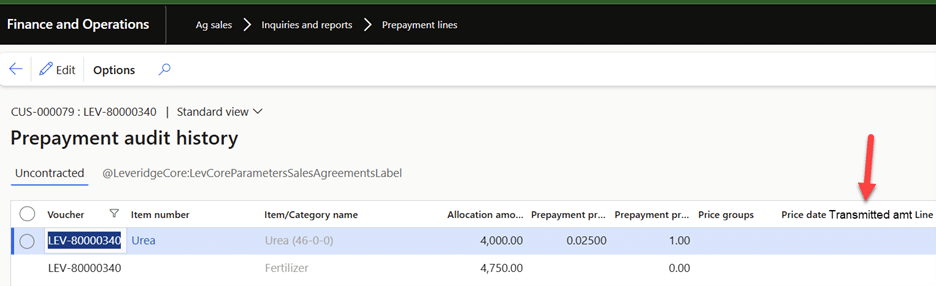
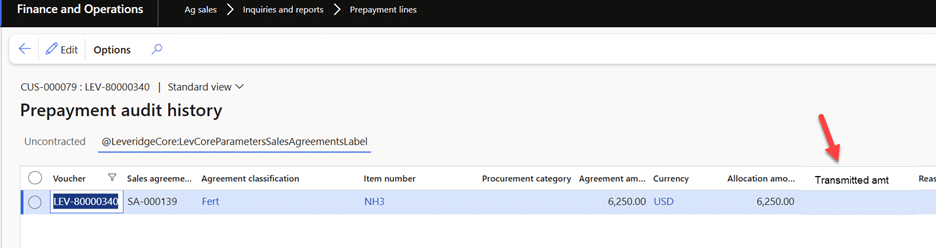
- Payment Distribution: Displays transfers under the new Transmissions tab: Ag Sales>Customers>All customers>Payment Distribution (in customer action pane)

On the Uncontracted tab on the payment details fast tab, the amount transferred from prepayment to credit will display under ‘Transmitted amount’.
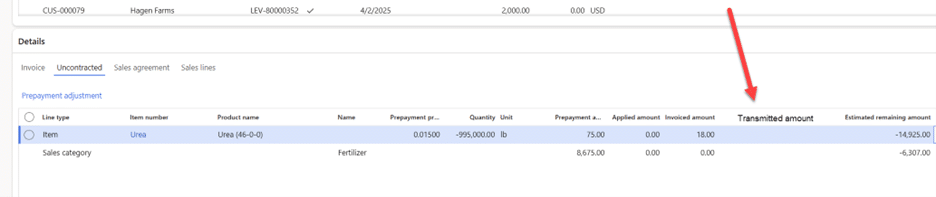
On the Sales agreement tab on the payment details fast tab, the amount transferred from prepayment to credit will display under ‘Transmitted amount’

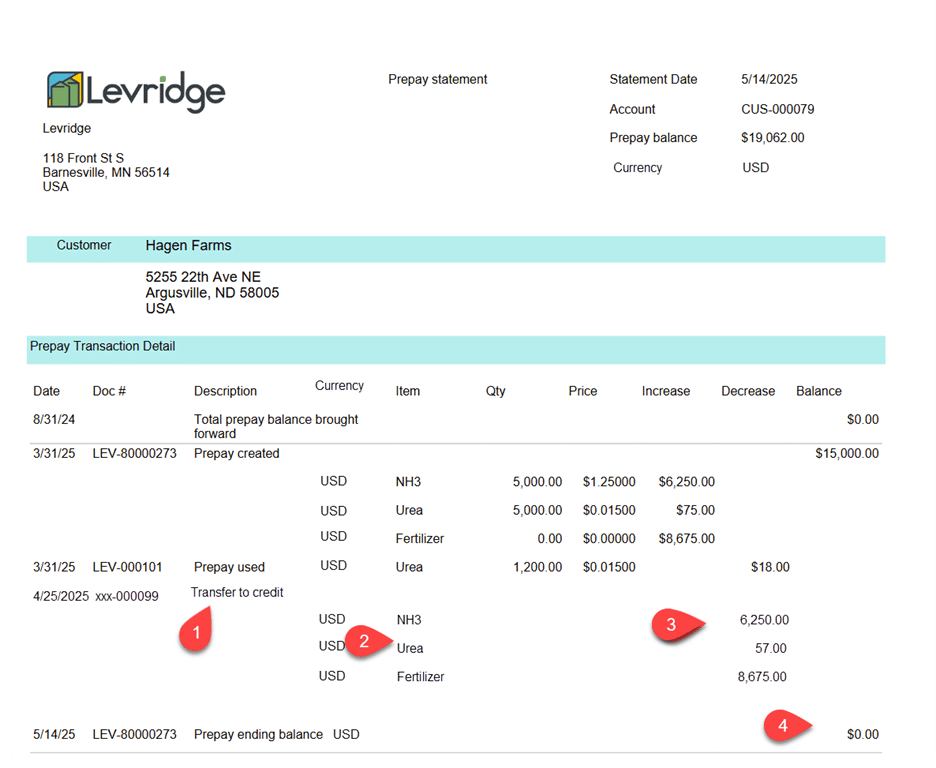
Prepayment Report & Customer Prepay Statement:
- Navigate to Ag sales>Inquiries and reports>Prepayments reports
- Includes columns for transferred amounts and updated balances.

Customer Prepay Statement
- Navigate to Ag sales>Inquiries and reports>Customer prepay statement
Best Practices
- Always verify remaining balances before initiating transfers.
- Use clear reason codes and comments for audit purposes.
- Run reports after transfers to confirm accuracy across AR and GL.
Accompanying YouTube video
For more information on Commodity Accounting, visit Commodity Accounting Solution.