
Posting Inventory Based On Ticket Date
| Published: May 22, 2026 | Accounting , Grain , Product Updates , Release Notes | read
 read
readLevridge Commodity Accounting now posts inbound and in‑transit tickets to inventory using the ticket date, not the day the ticket is applied or posted. This enhancement aligns inventory movement with when the commodity was physically delivered while still respecting fiscal period and inventory close rules.
Why This Matters
Previously, inventory postings used the system date when a ticket was applied to a contract or manually posted. For grain accounting teams, this could create temporary gaps in Daily Position Reports (DPR), long/short reports, and MTM calculations, especially when tickets were entered or applied days later.
With posting based on ticket date:
- Inventory reflects physical reality, not data entry timing
- DPR and risk reports become more accurate across days
- Back‑dated inventory adjustments are properly included in DPR and MTM calculations
- Month‑end close requires fewer manual explanations and adjustments
How It Works
When an inbound ticket is posted to inventory for the first time:
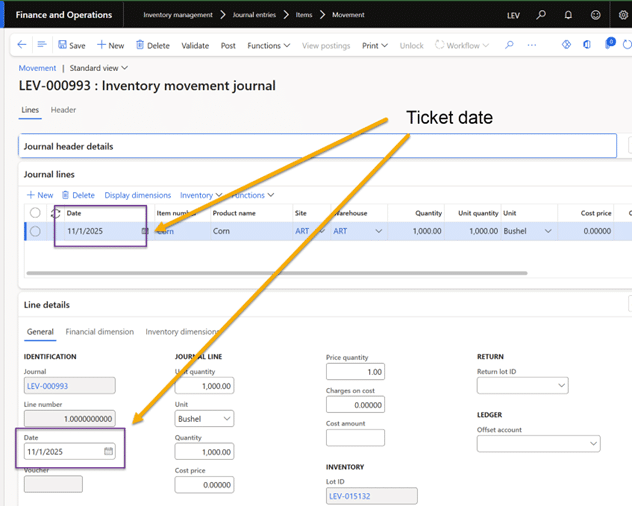
- Gross quantity (and ticket shrink, if enabled) is posted using the ticket date
- The system evaluates whether that date is valid:
- If inventory is closed or the fiscal period is closed, posting automatically moves to the next open date
- Purchase contract or storage agreement application is still recorded using the actual day the application occurs
- Subsequent changes—such as shrink reversals, weight changes, ownership transfers, or voids—are posted using the system date when the action happens
To ensure date accuracy across locations, the inventory posting date is determined using the site’s time zone, not the user’s time zone.
What You’ll See in the System
This change improves visibility without changing how users work:
- DPR Workspace and Reports now use a From Date and To Date instead of an “As of” date, ensuring tickets appear correctly even if they were entered later
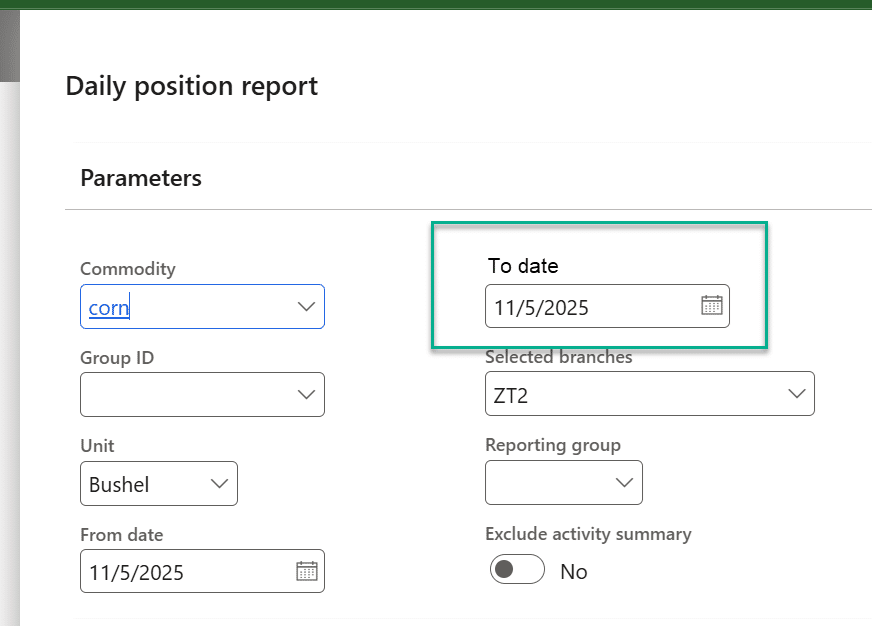
- Inventory appears in DPR and risk reports on the date it was posted to inventory—typically the ticket date
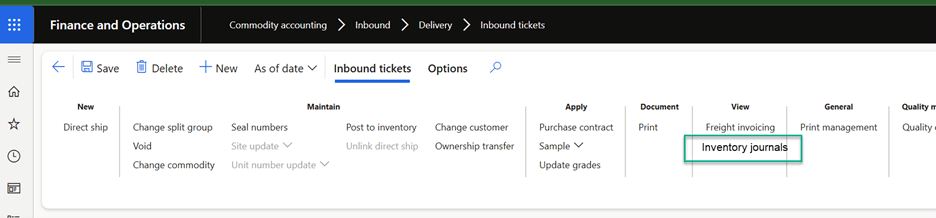
- A new Inventory Journals view on inbound tickets lets users see exactly what was posted, when, and by whom
How to Set It Up
Verify Inventory Periods
- Confirm inventory is open for the dates you expect tickets to post
- Inventory close dates are respected automatically
Review Fiscal Calendars
- Closed fiscal periods will shift posting to the next open date
Confirm Site Time Zones
- Navigate to Inventory management > Setup > Inventory breakdown > Sites
- Ensure each site’s time zone reflects the physical location
Check Shrink Configuration
- If Post shrink without contract is enabled, ticket shrink will post on the ticket date
- Contract shrink will replace ticket shrink once a contract is applied
Security Permissions
- Users with inbound ticket view access can also view inventory journals from the ticket